
Want to know how to add an address on Maps so your location is easy to find? Many people are still confused about how to ensure their home or business address appears accurately on digital platforms.
In fact, you can improve visibility by understanding how to properly add a home address on Google Maps. More than that, optimizing your Google Business Profile can also help attract more customers organically.
This article will discuss practical steps and important strategies you can apply right away. Learn how businesses appear on Maps and how this helps build trust and credibility with potential customers.
What Is Google Business Profile? (Complete Definition)
Google Business Profile is a digital representation of a business that appears in Google Search results and Google Maps. Although often considered the same, Google Maps and Google Business Profile have different roles in the digital ecosystem.
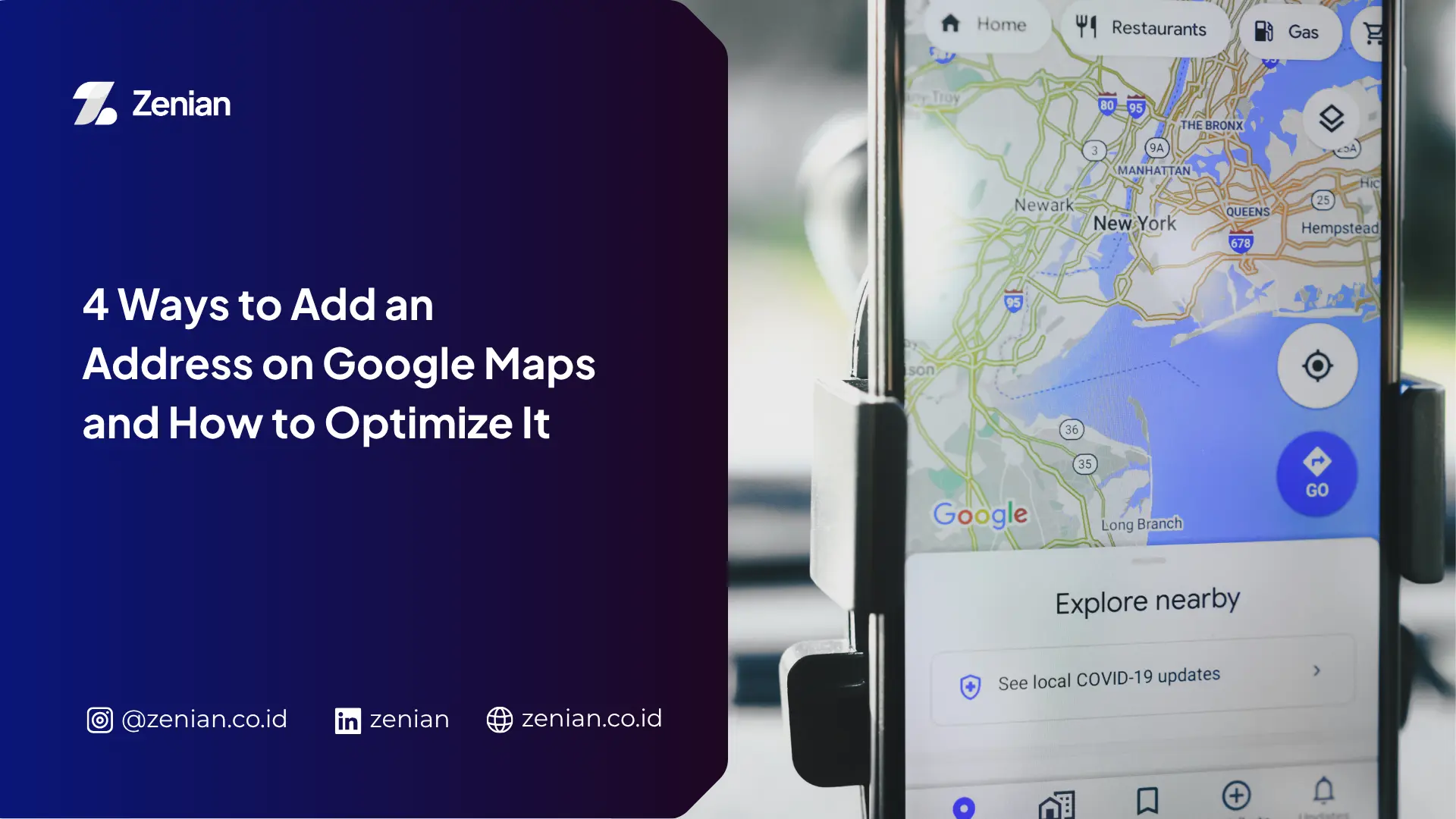
Google Maps functions as a navigation platform that helps users find routes and locations efficiently. Meanwhile, Google Business Profile acts as the business data entity displayed within it.
How Google Business Profile Works
The process starts from registration until it becomes publicly visible:
- Location registration: Add an address via Google Maps or browser using “Add a Place”
- Fill in details: Business name, category, contact, and description
- Upload visuals: Add real photos to strengthen data validity
- Verification: Google reviews and validates the information
- Public display: Profile appears in search results and maps
- Integration: Connected with other Google services, including real-time features
Functions of Google Business Profile for Business
1. Increase Visibility on Google Search
A verified profile connects directly with Google’s ecosystem, allowing your business to appear when users search for relevant keywords.
2. Help Customers Find Your Location Easily
An accurate address makes your business easier to reach and reduces the risk of customers getting lost. It also helps delivery and ride-hailing services locate you precisely.
3. Display Complete Business Information
You can present full business details, such as:
- Business name, category, and description
- Contact number and real photos
- Professional and trustworthy appearance
4. Support Local SEO Strategy
- Easier to appear in location-based searches
- Reviews and ratings build reputation
- Integration with Google services (including voice search devices)
Read Too: Why Doesn’t a Business Appear on Google Maps? Here Are 10 Causes
Benefits of Google Business Profile for Business Growth
- Increase Trust and Credibility: Verified addresses make businesses look more professional
- Reach Local Customers: Appear when nearby users search for services
- Boost Traffic and Conversions: More visibility leads to more visits and potential sales
- Customer Interaction: Reviews and ratings strengthen relationships
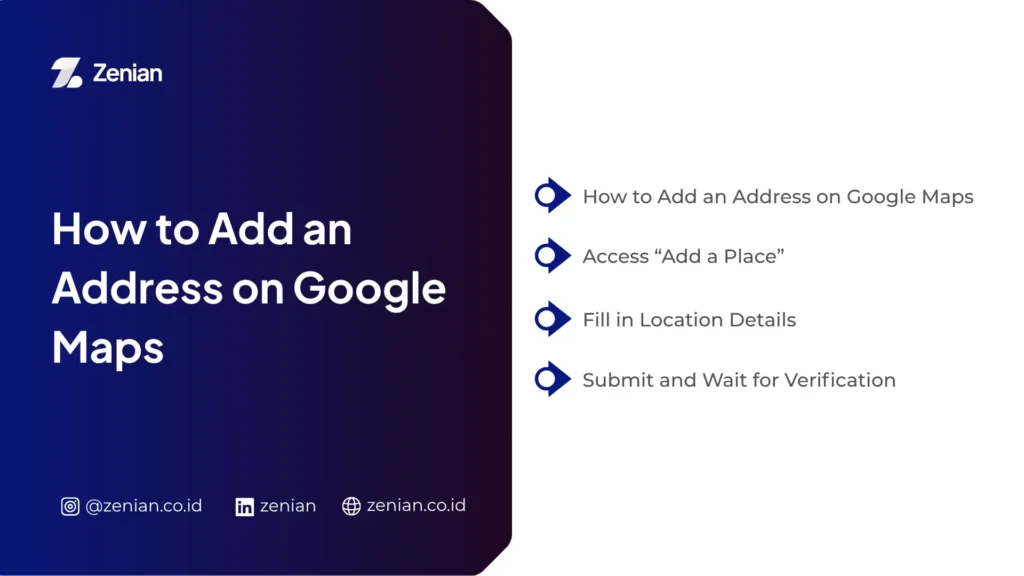
How to Add an Address on Google Maps
1. Open Google Maps
Use the app on Android/iOS or open maps.google.com in your browser. Make sure you’re logged into your Google account.
2. Access “Add a Place”
- Find the location on the map
- Tap and hold to drop a pin
- Select “Add a Place”
3. Fill in Location Details
Provide accurate information:
- Place name
- Category (home or business)
- Full address (street, number, postal code)
- Contact details and description
- Real photos
4. Submit and Wait for Verification
Click “Submit” or “Save.” Google will review the data. Once approved, the location will appear publicly.
How to Add a Home Address on Google Maps
1. Log In to Google Maps
Make sure you’re using an active Google account.
2. Add Location Manually
- Public listing: Use “Add a Place”
- Private list: Save under “Saved” → create a new list
3. Pin the Exact Location
Tap and hold the correct spot until a red pin appears. Ensure accuracy to avoid confusion.
4. Choose Visibility
- Private: Only visible to you
- Public: Fill full details and submit for verification
Tips to Make Your Location Easy to Find
- Write a complete and consistent address
- Upload high-quality real photos
- Use relevant keywords in descriptions
- Encourage positive reviews and ratings
Common Mistakes When Adding an Address
- Incomplete or inaccurate address data
- Incorrect pin placement
- Not completing verification
- Choosing the wrong category
- Adding fake or invalid locations
These mistakes can cause rejection or even account restrictions.
Optimize Your Google Business Profile
Optimizing your Google Business Profile ensures your business stands out in local search results. Accurate data, quality visuals, relevant descriptions, and positive reviews all play a key role in building credibility and attracting customers.
However, consistent optimization requires a proper strategy. Working with professional Local SEO services like PT Zenian Digital Lab can help improve rankings, increase organic traffic, and support long-term business growth.
Baca Juga: 7 Ways to Create Google My Business, A Complete Guide!