

Learning how to review on Google Maps can help you share your experiences while assisting other users in making informed decisions. Honest reviews can significantly influence a business’s reputation in the digital world.
Interestingly, Google Maps allows users not only to leave ratings and reviews but also to edit, delete, and respond to reviews with ease. Understanding these features can make your experience on the platform more effective and beneficial. Let’s explore the complete guide below.
What Is a Google Maps Review?
A Google Maps review is a feature that allows users to share their experiences after visiting a location or using a specific service.
Through this feature, users can:
- Give a rating from one to five stars.
- Write comments about their experience.
- Add photos or videos to support their review.
These reviews help other users gain a clearer understanding of a place’s quality before deciding to visit or make a purchase.
Benefits of Google Maps Reviews
Leaving reviews on Google Maps can positively impact a business’s growth. Here are some key benefits:
1. Increases Customer Trust
Potential customers often read reviews before deciding to visit a place or purchase a product. They compare other users’ experiences, examine star ratings, and evaluate comments regarding service quality.
The more positive reviews a business receives, the higher the level of trust from potential customers. A strong reputation makes a business appear professional, credible, and more attractive than competitors with few or no reviews.
2. Helps Businesses Become More Visible on Google
Google considers ratings and reviews as factors that influence a business’s visibility in search results. The more actively customers leave reviews, the greater the chance the business will appear in local search results.
Businesses with numerous high-quality reviews may also appear in the Google Maps Pack, the top three local business listings that typically show up when users search for services or places nearby.
This placement can significantly increase clicks and attract more potential customers. Additionally, instant review links make it easier for customers to leave feedback without manually searching for the business.
3. Provides Valuable Feedback for Business Owners
Customer reviews serve as an important source of feedback that businesses can use to improve their operations.
Through customer comments, business owners can identify strengths that should be maintained and weaknesses that need improvement.
Feedback may cover:
- Service quality
- Pricing
- Cleanliness
- Comfort
- Overall customer experience
Responding professionally to criticism and suggestions can improve customer satisfaction and strengthen customer relationships.
4. Supports Local SEO and Online Reputation
Customer reviews play a significant role in Local SEO (Search Engine Optimization) strategies.
The more quality reviews a business receives, the better its chances of ranking higher in local Google searches.
In addition to increasing visibility, positive reviews strengthen a business’s online reputation. When prospective customers see many positive experiences from other users, they are more likely to trust and choose the business.
For optimal results, businesses should combine review management with broader SEO and digital marketing strategies. This approach can increase traffic, strengthen digital credibility, and drive sustainable conversions.
Also Read: Why Doesn’t a Business Appear on Google Maps? Here Are 10 Causes
How to Leave a Review on Google Maps
Besides writing a new review, users can edit reviews, add photos, update ratings, or delete reviews at any time through their Google account.
Here’s how:
1. How to Leave a Review on Google Maps Using Mobile
If you’re using an Android phone, iPhone, or iPad, follow these steps:
- Open the Google Maps app.
- Search for the business or location you want to review.
- Tap the correct location to open its information page.
- Scroll down and select “Reviews” or tap “Write a Review.”
- Choose a rating from 1 to 5 stars based on your experience.
- Write an honest, clear, and helpful review.
- Tap “Post” or “Publish” to make your review visible to others.
2. How to Leave a Review on Google Maps Using Desktop
If you prefer using a computer or laptop:
- Sign in to your Google account through a web browser.
- Open Google Maps and search for the business or location.
- Click the appropriate listing to open the information panel.
- Scroll down and click “Write a Review.”
- Select the number of stars that matches your experience.
- Write a detailed review.
- Click “Publish” to post your review.
3. How to Add Ratings and Photos to a Review
In addition to written feedback, you can enhance your review with ratings and photos.
These additions make reviews more informative and useful for other users.
Select an Appropriate Rating
Choose between one and five stars based on your satisfaction level.
The higher the star rating, the more positive your review will appear.
Upload Photos or Videos
Click “Add Photos” and select images or videos from your device.
Use authentic, high-quality photos with good lighting to provide helpful visual information.
Complete Additional Information
For some locations, Google may ask questions about:
- Atmosphere
- Facilities
- Service quality
Answering these questions provides potential visitors with more comprehensive information.
4. Tips for Writing Helpful Reviews
High-quality reviews benefit both users and businesses. They can also contribute to a business’s Local SEO performance.
To write more useful reviews:
- Use natural language when describing products, services, or locations.
- Be specific about your experience, including service quality, cleanliness, atmosphere, pricing, and facilities.
- Mention both strengths and weaknesses to maintain objectivity.
- Write detailed reviews whenever possible. If you’re a Local Guides participant, reviews exceeding 200 characters may earn additional points.
- Avoid copying the same review across multiple locations or using fake accounts and bots. Google can detect suspicious activity and may impose account restrictions.
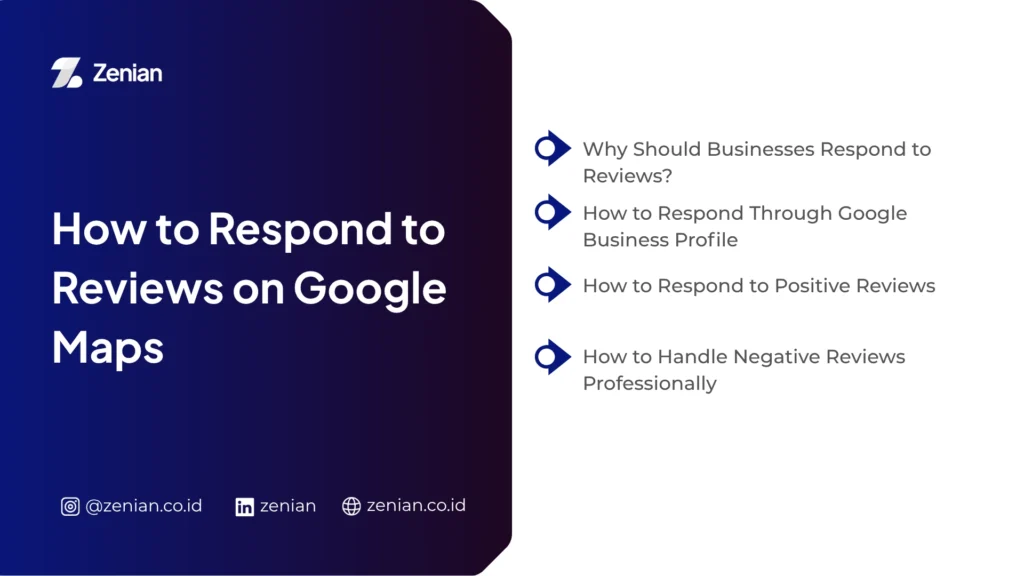
How to Respond to Reviews on Google Maps
Responding to reviews strengthens two-way communication between businesses and customers, helping improve marketing efforts and increase brand visibility on digital platforms.
Every response also contributes to a more professional image that potential customers can trust.
1. Why Should Businesses Respond to Reviews?
Fast and consistent interactions foster healthier relationships between businesses and customers.
This engagement can also increase opportunities for long-term customer retention and revenue growth.
Additionally, actively responding to reviews may improve a business’s visibility in search results. Businesses that consistently engage with customers have a better chance of appearing in the Google Maps Pack, which often receives up to 70% of user clicks.
2. How to Respond Through Google Business Profile
Before responding to reviews, ensure your business profile has been officially verified through Google Business Profile.
Once verified, reviews can be managed through the following methods:
Through the Google Business Profile Dashboard
Business managers can access their dashboard to read and respond to reviews professionally.
Responses should be:
- Concise
- Clear
- Consistent with brand voice
Using Omnichannel Solutions
Tools such as OneTalk can centralize Google Maps reviews into a unified dashboard.
This allows teams to manage responses efficiently without switching between platforms.
Using AI-Powered Chatbots
Artificial intelligence solutions can provide quick initial responses to common customer inquiries through Google Business Messages and other digital channels.
3. How to Respond to Positive Reviews
Positive reviews should be acknowledged promptly, politely, and professionally.
Good responses help maintain customer relationships and encourage long-term loyalty.
Effective approaches include:
- Thanking customers for their feedback.
- Encouraging them to share their experiences on social media, videos, or blogs to expand brand reach.
- Expressing appreciation sincerely to increase the likelihood of repeat business.
4. How to Handle Negative Reviews Professionally
Negative reviews should be handled calmly and objectively.
A thoughtful response can transform a negative experience into an opportunity for service improvement.
Recommended practices include:
- Respond professionally without blaming the customer.
- Keep the conversation constructive and solution-focused.
- Use criticism as valuable feedback for improving products and services.
- Reply as quickly as possible to demonstrate commitment to customer satisfaction and continuous improvement.
How to Delete a Review on Google Maps
Google Maps gives users full control over their contributions, including published reviews.
This ensures users maintain ownership of their digital footprint.
1. How to Delete Your Own Review
You can delete reviews through the Google Maps app or web version as long as you’re logged into the account used to create the review.
Follow these steps:
- Open Google Maps on your device or browser.
- Ensure you are signed in to the correct Google account.
- Click your profile picture in the upper-right corner.
- Select “Reviews & Ratings” or “Your Contributions.”
- Locate the review you want to remove.
- Click the three-dot menu beside the review.
- Select “Delete” and confirm the action.
The review will be permanently removed.
2. Reasons to Delete or Edit a Review
Users commonly update or remove reviews for several reasons:
Updated Experiences
A customer’s most recent experience may differ from their original review, prompting updates to ratings, text, or photos.
Correcting Information
Users may edit reviews to fix spelling mistakes or inaccurate details.
Maintaining Information Quality
Outdated reviews can be removed to ensure information remains relevant and accurate.
Creating Balanced Feedback
Users may revise reviews to present a fairer assessment by including both positive and negative aspects.
3. Things to Consider Before Deleting a Review
Before removing a review, keep the following in mind:
Loss of Local Guides Points
Deleting reviews removes the contribution points associated with them, including bonuses earned for detailed reviews.
Impact on Business Reputation
Reviews help build public trust. Removing them may affect how potential customers perceive a business.
Loss of Photos and Videos
Any photos or videos attached to the review will also be permanently deleted.
Account Integrity Risks
Suspicious activities involving review manipulation may be detected by Google’s systems and could lead to account restrictions.
Common Mistakes in Managing Google Maps Reviews
Many businesses miss valuable opportunities because they make basic mistakes when handling customer feedback.
These mistakes may seem minor but can significantly damage trust and reduce local search visibility.
1. Ignoring Customer Reviews
Some business owners choose not to respond to reviews, especially negative ones.
This can make customers feel undervalued and reduce trust in the business.
Every review represents valuable feedback that can help improve products and services. Active engagement demonstrates commitment to customer satisfaction and relationship building.
2. Purchasing Fake Reviews
Some businesses attempt to boost their reputation quickly by buying fake reviews or using bots.
Practices such as click farms or posting reviews from people who never visited the location can be detected by Google.
These actions may result in account suspension and long-term damage to business credibility.
Offering hidden incentives in exchange for reviews also violates Google’s policies.
3. Responding Emotionally to Reviews
Emotional responses to criticism can harm a business’s professional image.
Businesses should maintain a calm, respectful, and objective tone in all interactions.
Thoughtful responses demonstrate professionalism and a genuine commitment to improvement.
4. Failing to Monitor Reputation Regularly
Many businesses focus only on existing reviews without monitoring their reputation consistently.
Regular monitoring is essential for maintaining visibility within the Google Maps Pack and local search results.
Without ongoing engagement, search visibility may decline over time.
To streamline review management, businesses can implement digital systems that centralize customer conversations and feedback into a single platform.
Manage Your Business Reputation and Local SEO with Zenian!
Google Maps reviews have become one of the most influential factors in building customer trust. That’s why digital reputation management requires more than simply collecting reviews it demands a strategic approach.
PT Zenian Digital Lab serves as a strategic partner for businesses looking to optimize Local SEO, increase conversions, and achieve sustainable growth through data-driven strategies.
Contact our team today and start building a more effective business growth strategy.
Also Read: Local SEO Strategy: How to Increase Local Business Visibility