


Knowing how to register a location on Google Maps is very important, especially if you want to make it easier for others to find your home or business address. By adding a location to Google Maps, you can increase visibility as well as online credibility.
Today, many people rely on Google Maps to find places, so ensuring your location is properly registered is a strategic step.
What Is Google Maps?
Google maps refers to an address point or place registered in Google’s system, particularly through Google Maps. This location can be a home, office, store, or other public place that users can find through search.
With this feature, users can directly see directions, distance, and detailed information related to the location.
Benefits of Adding a Location on Google Maps
1. Makes It Easier for People to Find Your Address
With a registered location, others can find your address more quickly and accurately.
2. Increases Business Credibility
Businesses that appear on Google Maps tend to be more trusted by potential customers.
3. Supports Visibility in Google Search
Registered locations have the opportunity to appear in Google search results, especially for local searches.
How to Register a Location on Google Maps Easily
Here are the steps to create an address on Google Maps:
1. Open Google Maps
Access Google Maps via a browser or smartphone app.
2. Log in to Your Google Account
Make sure you are logged in with an active Google account.
3. Click “Add a Missing Place”
Click the menu “Add a missing place” or “Tambahkan tempat yang belum ada.”
4. Fill in Location Details Completely
Enter information such as:
- Place name
- Full address
- Location category
- Phone number (optional)
5. Submit and Wait for Verification
Once all data is complete, click submit and wait for Google’s review process.
Read Too: Why Doesn’t a Business Appear on Google Maps? Here Are 10 Causes
How to Add an Address on Google Maps Manually
In addition to the method above, you can also add an address manually.
1. Adding a Home or Personal Location
Use the location pin feature to mark your home address.
2. Using the Pin Feature
Click and hold on the map until a red pin appears, then select the option to add a location.
3. Edit and Update Location Information
If there are errors, you can edit location details through the edit menu.
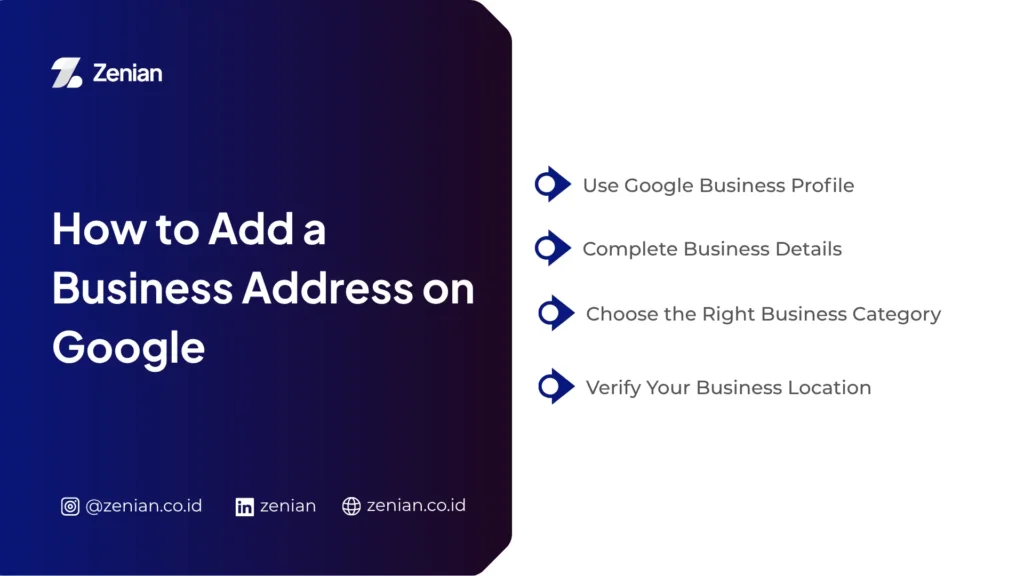
How to Add a Business Address on Google
For business purposes, it is recommended to use Google Business Profile for better results.
1. Use Google Business Profile
This platform is specifically designed to manage business profiles on Google.
2. Complete Business Details
Fill in information such as:
- Business name
- Address
- Operating hours
- Contact details
- Website
3. Choose the Right Business Category
Categories help Google show your business to the right target audience.
4. Verify Your Business Location
Complete verification through available methods such as postal code, phone, or email.
Difference Between Regular and Business Locations on Google Maps
A regular location only functions as an address marker, while a business location includes additional features such as:
- Customer reviews
- Ratings
- Business photos
- Service information
Tips to Make Your Location Appear Faster on Google Maps
1. Use Accurate Data
Ensure all information is correct and error-free.
2. Add Photos and Descriptions
Visuals help increase user trust.
3. Keep Data Consistent (NAP)
Use the same Name, Address, and Phone Number across all platforms.
Common Issues When Adding a Location
Location Not Showing
Usually because it is still under review.
Rejected by Google
Occurs if the data is invalid or violates policies.
Incomplete Data
Missing information can slow down the verification process.
Creating an address on Google Maps is actually quite easy if you follow the correct steps. By adding a location, you can help others find your address faster while also increasing trust, especially for business purposes.
Optimize Your Business Location with Professional SEO!
Having a location on Google Maps alone is not enough if you want to compete in search results. You need the right SEO strategy so your business can appear at the top.
PT Zenian Digital Lab is here as a professional Local SEO solution to help increase your business visibility on Google and Google Maps. With data-driven strategies, Zenian is ready to help you reach more potential customers.
Consult your business SEO needs now and maximize your opportunities in digital search!
Read Too: 4 Ways to Add an Address on Google Maps and How to Optimize It