
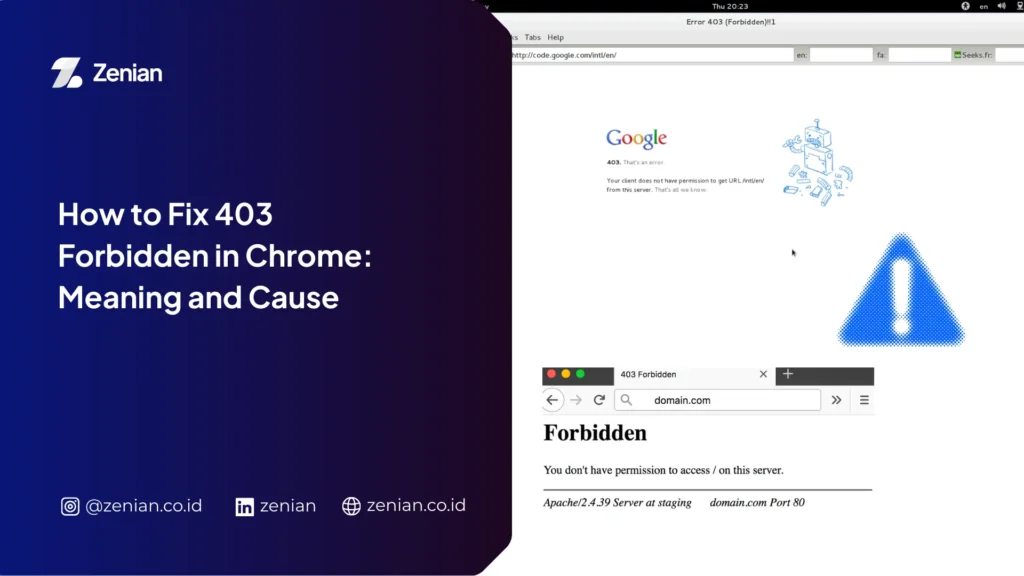
When opening a website, users sometimes encounter an error message such as 403 Forbidden, which prevents the page from being accessed. This issue often appears in browsers like Chrome and can occur due to various factors, ranging from server settings to access permission problems.
Understanding how to fix 403 Forbidden in Chrome is important so you can identify the cause and find the right solution. In this article, you will learn what a 403 code is, the meaning of 403 Forbidden, and how to remove this error with easy-to-understand steps.
What Is the 403 Forbidden Code?
The 403 code is one of the HTTP status codes indicating that the server understands the user’s request but refuses to grant access to the requested page.
In the communication system between the browser and the server, each response has a specific status code. Code 403 falls into the error category indicating that access to a particular page is restricted by the server.
Usually, this message appears when a user attempts to open a page that requires special permission or when the server restricts access to certain files.
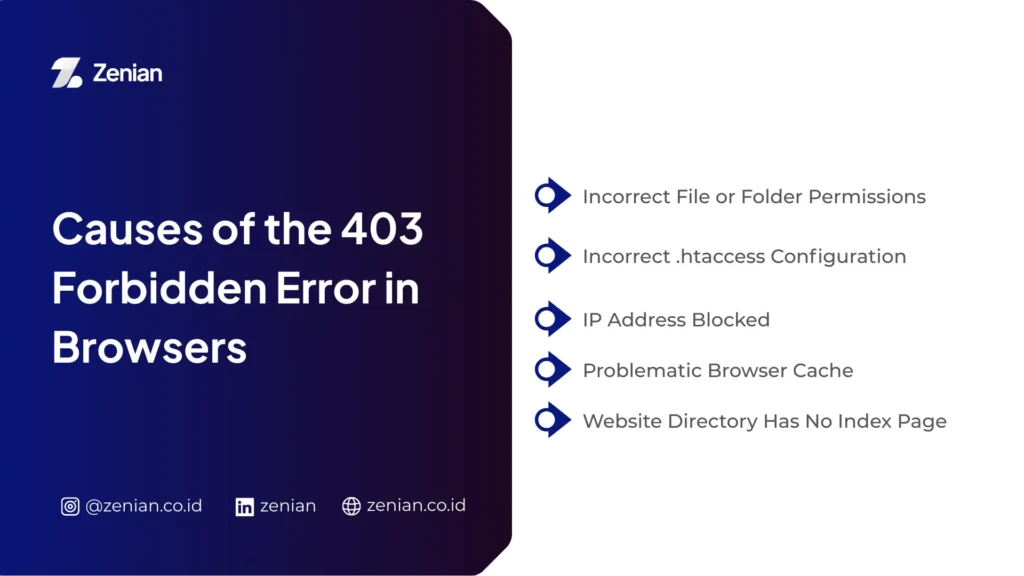
Causes of the 403 Forbidden Error in Browsers
Before learning how to remove 403 Forbidden, it is important to understand some common causes of this error.
1. Incorrect File or Folder Permissions
Servers have permission settings for every file and folder on a website. If these settings are too strict, the server may deny user access, resulting in a 403 error.
2. Incorrect .htaccess Configuration
The .htaccess file is often used to manage security and redirects on a website. Configuration errors in this file can cause the server to reject access requests.
3. IP Address Blocked
Some websites use security systems that block certain IP addresses. If the user’s IP is included in the block list, the website page cannot be accessed.
4. Problematic Browser Cache
Cache stored in the browser can sometimes conflict with the latest data from the server, triggering an error.
5. Website Directory Has No Index Page
If a website folder does not contain an index file such as index.html or index.php, the server may deny access to that directory.
6 Ways to Fix 403 Forbidden in Chrome
Below are several steps you can take to fix 403 Forbidden in Chrome.
1. Refresh the Website Page
The simplest step is to reload the page by pressing the refresh button or using the shortcut Ctrl + F5 to perform a hard refresh.
This method can help if the error occurs due to temporary issues on the server or connection.
2. Clear Browser Cache and Cookies
Cache and cookies stored in the browser can cause conflicts with the latest website data.
Steps you can follow:
- Open the Settings menu in Chrome
- Select Privacy and Security
- Click Clear browsing data
- Delete cache and cookies
After that, try accessing the website page again.
3. Check the Website URL
Sometimes the error occurs because the URL entered is incorrect or leads to a directory without access permission.
Make sure the URL you are using is correct and directs to a valid page.
4. Try Using Another Browser or Device
If the error still appears, try accessing the website using another browser or a different device. This method can help determine whether the problem comes from the browser or the server.
5. Check Website File Permissions
For website owners, one way to remove 403 Forbidden is by checking file permissions on the server.
The recommended settings are usually:
- Folder: 755
- File: 644
These settings allow the server to provide user access without granting overly broad permissions.
6. Check the .htaccess File
If the website uses an Apache server, errors in the .htaccess file may cause a 403 error.
You can try the following:
- Edit the .htaccess file
- Remove incorrect rules
- Restore the default configuration
After making changes, try accessing the website page again.
How to Remove 403 Forbidden for Website Owners
In addition to the basic steps above, website owners can take several additional actions to resolve this error.
Some steps include:
- Ensuring an index file exists in every directory
- Checking server configuration
- Enabling necessary directory access
- Making sure there are no incorrect IP blocking rules
Performing a comprehensive server check will help ensure the website can be accessed normally.
Conclusion
The 403 Forbidden error indicates that the server refuses an access request to a particular page. This issue usually occurs due to server security settings, incorrect file permissions, or problems on the user’s browser.
By understanding the meaning of 403 Forbidden and applying several solutions such as clearing cache, checking URLs, and fixing server configurations, this error can be resolved more easily.
Want Your Website to Be More Stable and Easier to Find on Google?
Besides fixing technical issues like website errors, it is also important to ensure your website is optimized with the right SEO strategy. SEO optimization helps increase website visibility so potential customers can find it more easily in search engines.
PT Zenian Digital Lab provides Search Engine Optimization (SEO) services that help improve your website’s performance through measurable optimization strategies. With the right SEO approach, your website can gain more stable and sustainable organic traffic.
Read Too: How to Create URL: A Complete Guide to Proper URL Structure