
Improving your online presence is now easier, even for beginners without a technical background. Through this guide, you will understand how to create a website on Google Sites as well as how to create a free website with practical and efficient steps.
The Google Sites platform offers convenience thanks to its intuitive drag-and-drop features as well as direct integration with various other Google services. You do not need to understand coding to start creating a functional and attractive website.
What Is Google Sites?
Google Sites is a free and practical website creation platform owned by Google that allows you to create a site without having to understand coding. This platform is part of the Google Workspace ecosystem.
Google Sites provides various simple yet fairly complete features to help you build a modern website:
- Drag-and-Drop Editor: You can arrange the website layout simply by dragging and dropping elements such as text, images, and buttons without technical difficulty.
- Google Workspace Integration: You can embed various files from Google Drive, Docs, Sheets, Slides, Forms, Calendar, and even Google Maps directly into the website.
- Template Gallery: This platform provides various ready-to-use templates such as portfolios, events, or help centers that help you speed up the design process.
- Responsive Design: The website will automatically adjust its appearance across various devices, from desktops, tablets, to mobile phones.
- Real-Time Collaboration: You can invite your team to edit the website together in real-time, similar to working in Google Docs.
- Various Content Elements: You can add various elements such as image carousel, buttons, dividers, table of contents, and even embed HTML code.
Compared to other website builders such as WordPress or Wix, Google Sites offers several attractive advantages.
How to Create a Free Website on Google Sites
You can directly create a website without needing to understand coding, making the process faster and more efficient. With features already integrated into the Google ecosystem, you can manage content flexibly while automatically saving data.
1. Log in to a Google Account
The first step is to make sure you already have a Google account. If not, you need to register first by filling in your personal data and completing verification.
After successfully logging in, the system will automatically connect your website with Google Drive. This allows you to save all changes automatically without needing to perform manual backups.
2. Open Google Sites
Next, open the official page through a browser by accessing https://sites.google.com/new.
After that, log in using the prepared Google account. You will be directed to the main page to start creating and managing your website easily.
3. Choose a Website Template
On the dashboard page, you can directly determine the type of design you want. If you want quick results, choose the Template Gallery which provides various ready-to-use designs such as portfolios, events, or business sites.
However, if you want a more unique appearance, use the Blank Site option with the plus icon to create a design from scratch according to your needs.
4. Create and Manage Pages
You can start filling in content using the available editor features. Use the Insert tab to add various elements such as text, images, YouTube videos, or documents from Google Drive.
The drag-and-drop system makes it easy to arrange element positions simply by dragging and dropping them.
In addition, use the Pages tab to add new pages, manage navigation structure, or hide certain pages.
Do not forget to give your website a name in the top left section and replace the main page title (Your page title) to make it look more professional.
5. Customize the Website Appearance
To make your website look attractive, you can customize its appearance through the available menu.
Select Themes to determine the visual style such as fonts, colors, and backgrounds. Use the layout section feature to arrange elements so they are more neat and structured.
You can also add an image carousel to display images dynamically or embed HTML code if you need more specific additional features.
6. Publish the Website
After all content is ready, you can immediately publish the website. Click the Publish button at the top right. Next, determine the website address with the format https://sites.google.com/view/yourwebsitename.
Also set who can access the website through the Who can view my site feature. After the publication process is complete, your website will go online immediately and automatically use the HTTPS security protocol, making it safer for visitors to access.
How to Create a Free Website Easily
Platforms like Google Sites allow anyone to create a website in a simple and fast way. There are also other recommendations you can use, as well as important things to consider before creating one.
Free Platforms Besides Google Sites
Besides Google Sites, several other platforms also provide free website creation services that are easy to use. Each platform offers its own advantages according to user needs.
- WordPress: This platform simplifies the website creation process from account registration, choosing themes, to publishing content.
- Wix: Provides a drag-and-drop based editor that makes it easy to manage design and add pages.
- WordPress.com: Another alternative that offers similar convenience with basic features for creating a free website.
With these various options, you can choose the platform that best suits your website creation goals.
When Should You Use a Free Website
Free websites are an ideal solution in various conditions, especially when needs are still simple and resources are limited. Their use can be adjusted to the following situations:
- Limited Time and Budget: Suitable for those who want to create a website without large investment.
- Simple Website Needs: Ideal for websites with basic features without complex customization.
- Personal Branding and Portfolio: Helps showcase work, experience, and personal identity online.
- Small Businesses and Organizations: Can be used to introduce small-scale businesses or communities.
- Specific Promotional Purposes: Effective for creating landing pages, promoting events, or sharing content.
- Learning Media: Supports e-learning needs or online educational activities.
Tips for Creating an Attractive and Professional Website
To produce a truly high-quality appearance, you still need to pay attention to several important aspects so the website looks credible, easy to access, and able to attract visitors.
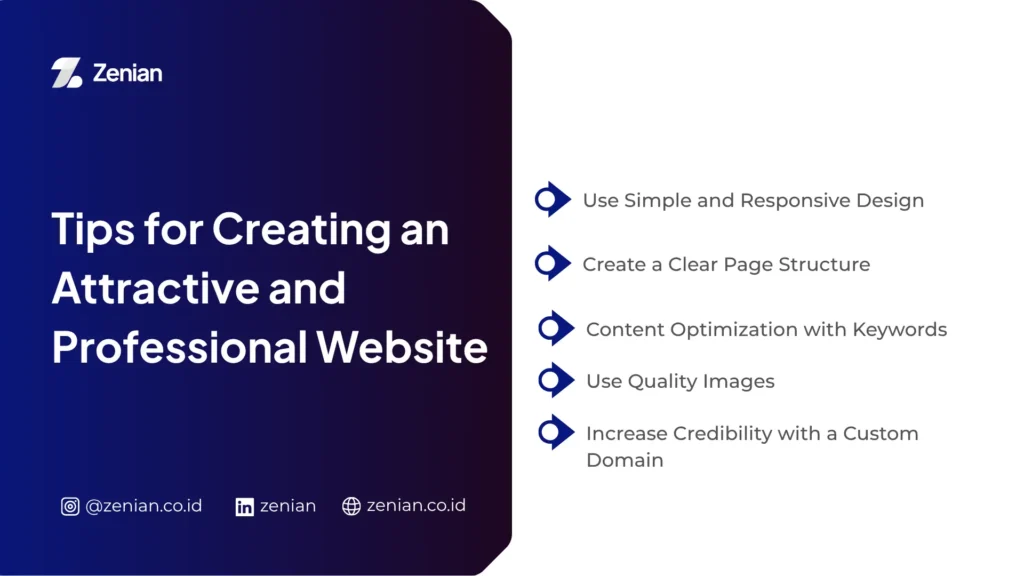
1. Use a Simple and Responsive Design
Use a simple and intuitive design so visitors can quickly understand the website content without confusion. Choose available templates because they usually already have a neat structure, including headers, footers, and consistent navigation.
Also, make sure the website has a responsive appearance, so it can automatically adjust when accessed through various devices such as computers, tablets, and mobile phones.
2. Arrange a Clear Page Structure
Arrange the page structure neatly so the flow of information is easy to follow. Use the Pages tab on the editor panel to manage website navigation.
Start from the main page (homepage), then add supporting pages such as profile, services, or contact. A clear structure will help visitors find the information they need without taking too long.
3. Optimize Content with Keywords
Perform content optimization so the website is easier to find in search engines. Adjust search settings so the site can be properly indexed.
Use relevant keywords naturally in the content to increase visibility. In addition, the automatic HTTPS protocol on Google Sites also improves security and visitor trust.
4. Use High-Quality Images
Add high-quality visual elements to strengthen the website appearance. Use background images in the header section to make it more attractive, or utilize the image carousel feature.
This aims to display multiple images with dynamic transition effects. Clear and professional visuals will give the impression that the website is managed seriously.
5. Increase Credibility with a Custom Domain
Use a custom domain so the website looks more professional and easy to remember. The default address is usually long and less attractive, while a domain like www.yourbusinessname.com can increase credibility and strengthen brand identity.
With the right domain, visitors will trust and recognize your website more easily.
Advantages and Disadvantages of Google Sites
Google Sites offers various advantages that make it suitable for beginners and users who want a simple solution:
- Completely Free: You can use this platform without subscription fees, either monthly or annually, making it very beginner-friendly or suitable for projects with limited budgets.
- Very Easy to Use: You can directly create a website through an intuitive drag-and-drop system without needing to understand coding. The process becomes faster and less confusing.
- Integrated with Google Workspace: You can embed various files such as Google Docs, Sheets, Slides, as well as YouTube videos and Google Maps directly into website pages.
- Efficient Team Collaboration: You can invite team members to edit the website in real-time, similar to working in Google Docs, making the workflow faster and more coordinated.
However, despite its practicality, Google Sites also has several limitations that you need to consider before using it:
- Limited Features: Compared to platforms like WordPress or Wix, the available features are still basic and do not support complex needs.
- Limited Design Customization: You have limited flexibility in customizing the website appearance due to fewer theme and design element options.
- Less Optimal for Advanced SEO: This platform does not provide in-depth SEO settings, making it less flexible for those who want maximum search engine optimization.
- Not Suitable for e-Commerce: Google Sites is not designed for complex online store needs, making it less ideal as an e-commerce platform.
- Long Default URL: The provided website address tends to be long and less professional, so using a custom domain is recommended to increase credibility.
Want a More Professional and SEO-Friendly Website?
Google Sites is the right choice for those who want to create a website quickly, for free, and without technical obstacles. However, as business needs grow, its feature limitations make this platform less optimal for long-term development.
If you want a more professional, SEO-friendly website that can support business growth optimally, it is time to consider more advanced solutions such as WordPress or Wix, or use professional services like PT Zenian Digital Lab.
With a Search Engine Optimization (SEO) service strategy and a 360° Digital Marketing approach, you can increase visibility while reaching more potential customers. Consult your digital needs with Zenian and start optimizing your business potential now!